
Before you begin
You need the email address and password registered for your FTS moderator account.
Browser version: The web application connects securely through the site.
Desktop version: The application uses ftspredictionmarkets.com and retrieves the current port automatically from the FTS website.
Neither version requires you to enter a server address, port or IP address.
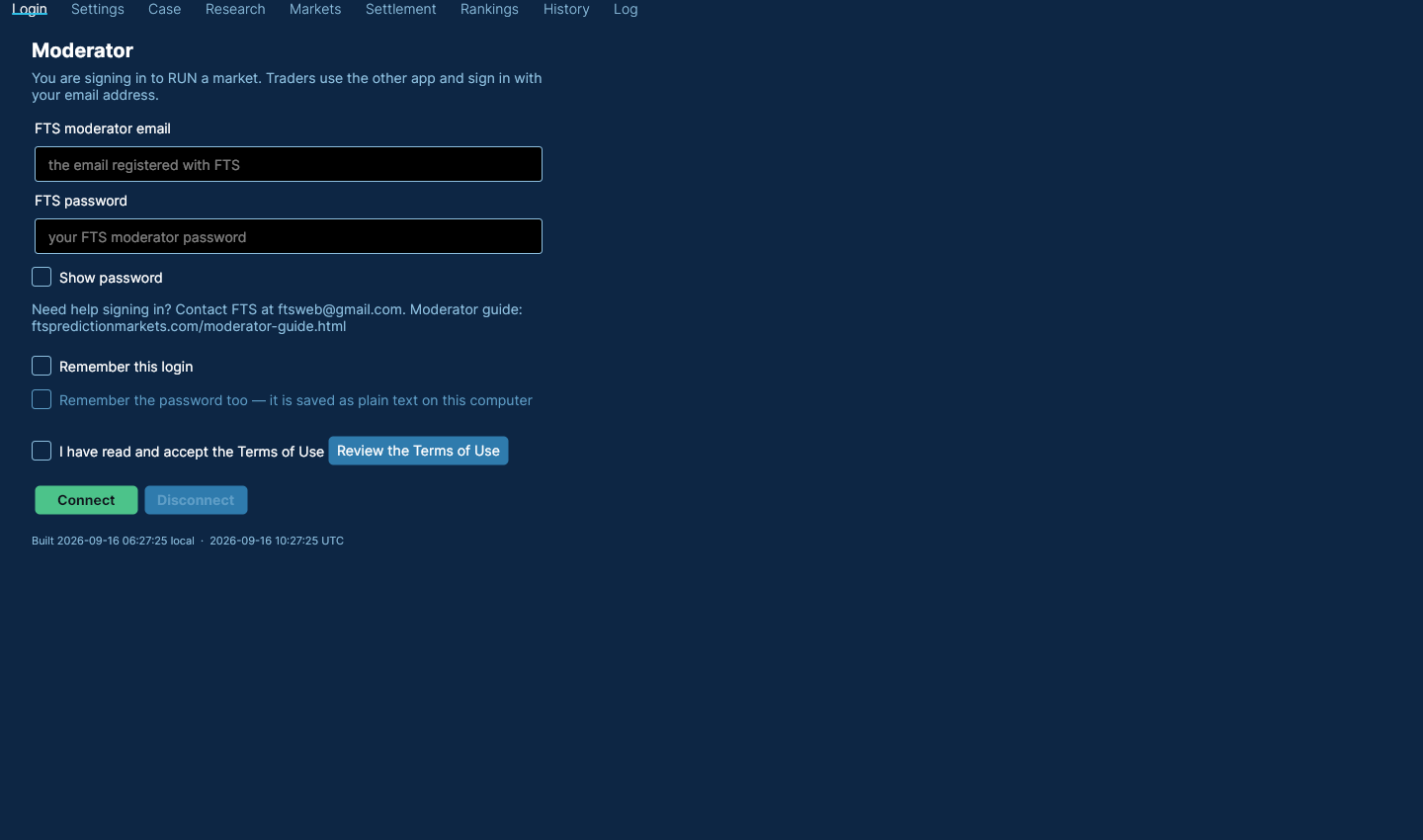
1. Sign in
- Open the Moderator application.
- Enter the email registered with FTS and your FTS password.
- Review and accept the Terms of Use.
- Select Connect.
Use Remember this login only on a computer you control. Do not save a password on a shared computer.
2. Prepare the case
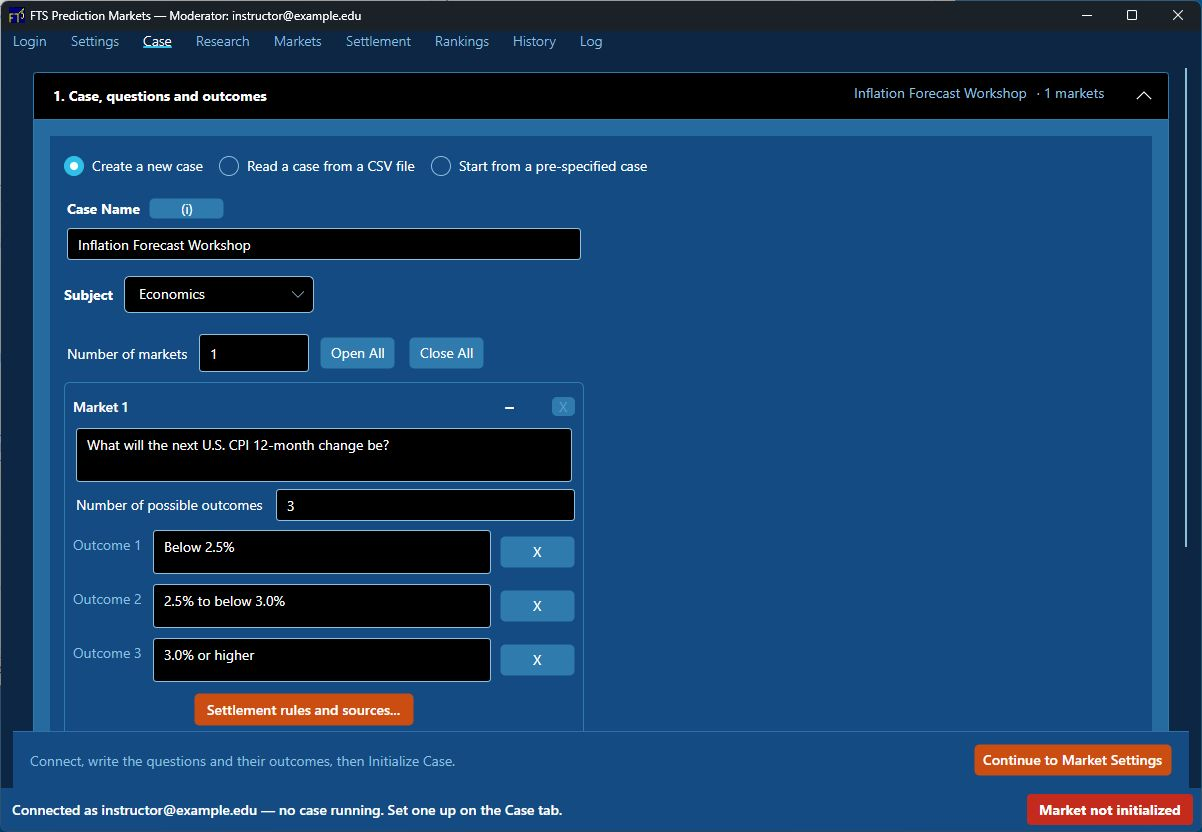
The Case tab has three guided steps. In 1. Case, questions and outcomes, create a new case, read a CSV, or choose a pre-specified case. Browse the Case Library to review the available cases before choosing one. If a case contains placeholders such as {TICKER}, complete the customization dialog and select OK. The same value can fill matching placeholders throughout the title, questions, outcomes, rules and source links.
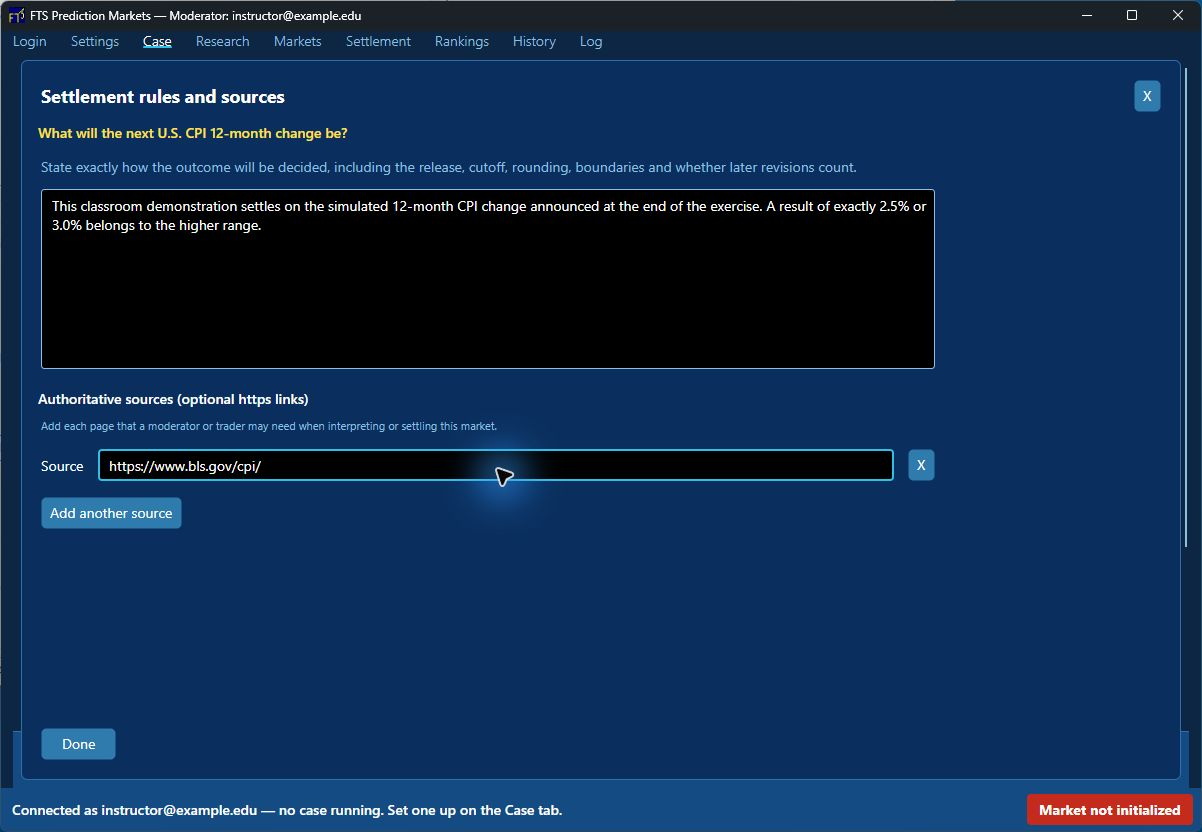
Review the case name and subject, every question and its outcomes, and each market's Stops trading date. The date shortcuts are conveniences; check the actual date and time before continuing. Each market needs at least two outcomes. Use Settlement rules and sources to explain exactly how that market will be decided and add any authoritative HTTPS links. Traders can read these details from the market's information icon.
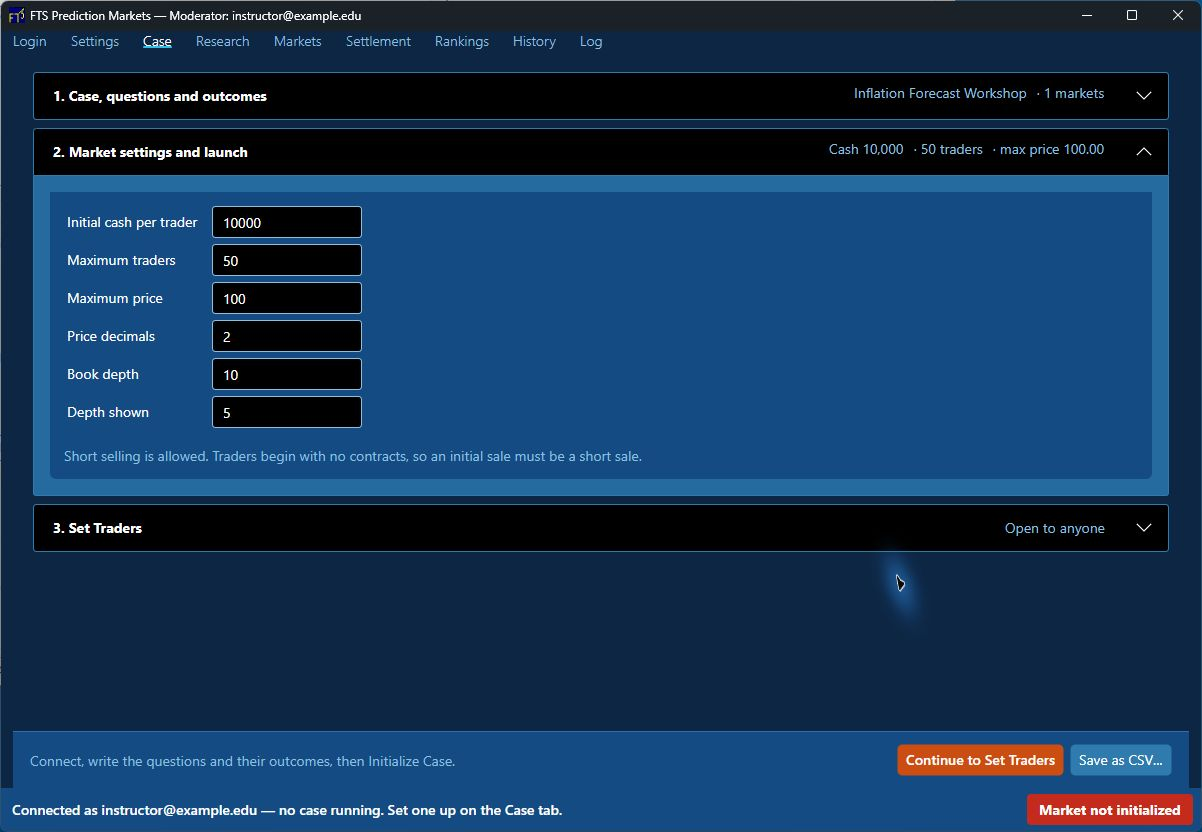
Select Continue to Market Settings. In 2. Market settings, review initial cash, the maximum number of traders, maximum price, decimals and order-book settings. Short selling is allowed so that an initial sell order can be placed. With the usual maximum price of 100, a price of 63 implies 63%; for another maximum, divide the price by that maximum. Borrowing is not allowed, so purchases cannot take cash below zero.
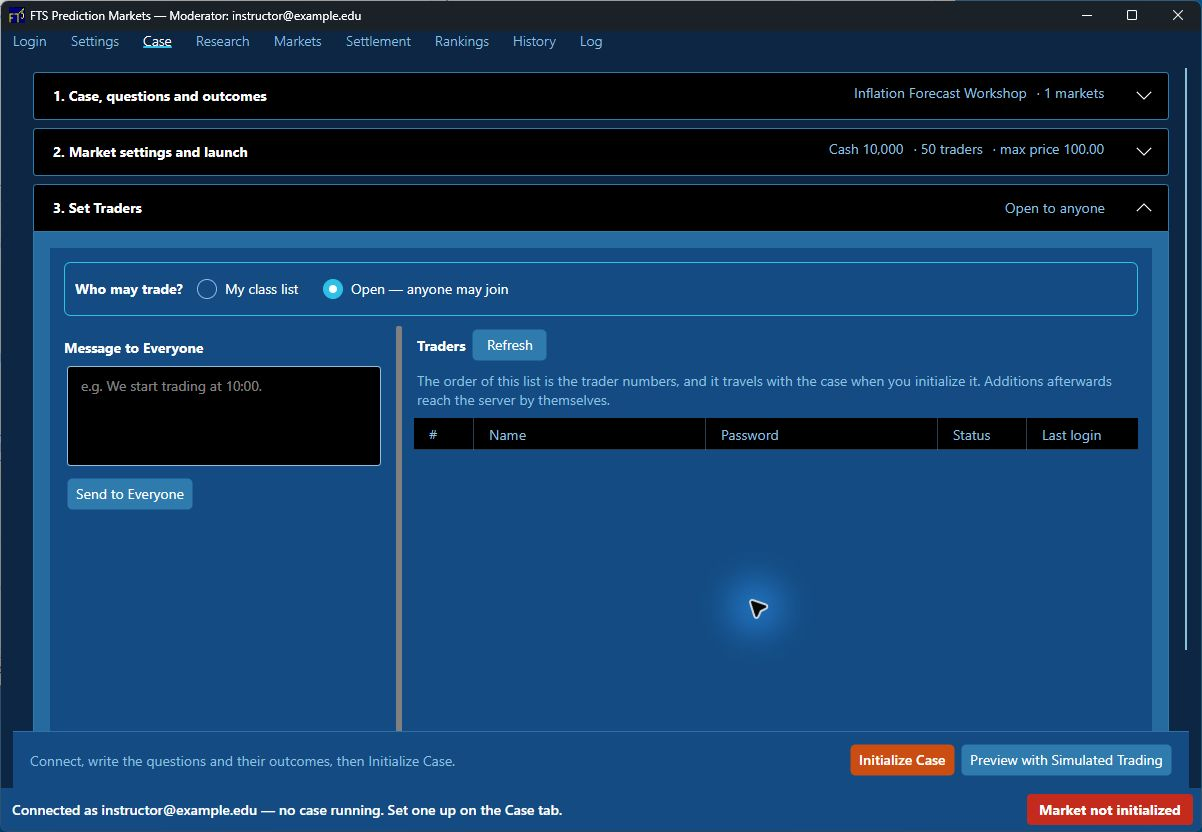
Continue to 3. Set Traders, then select Initialize Case when all three steps are ready. You can save the editable case as a CSV before running it. The run/session name is generated from the case name and date/time to keep repeat runs distinct.
Research sources
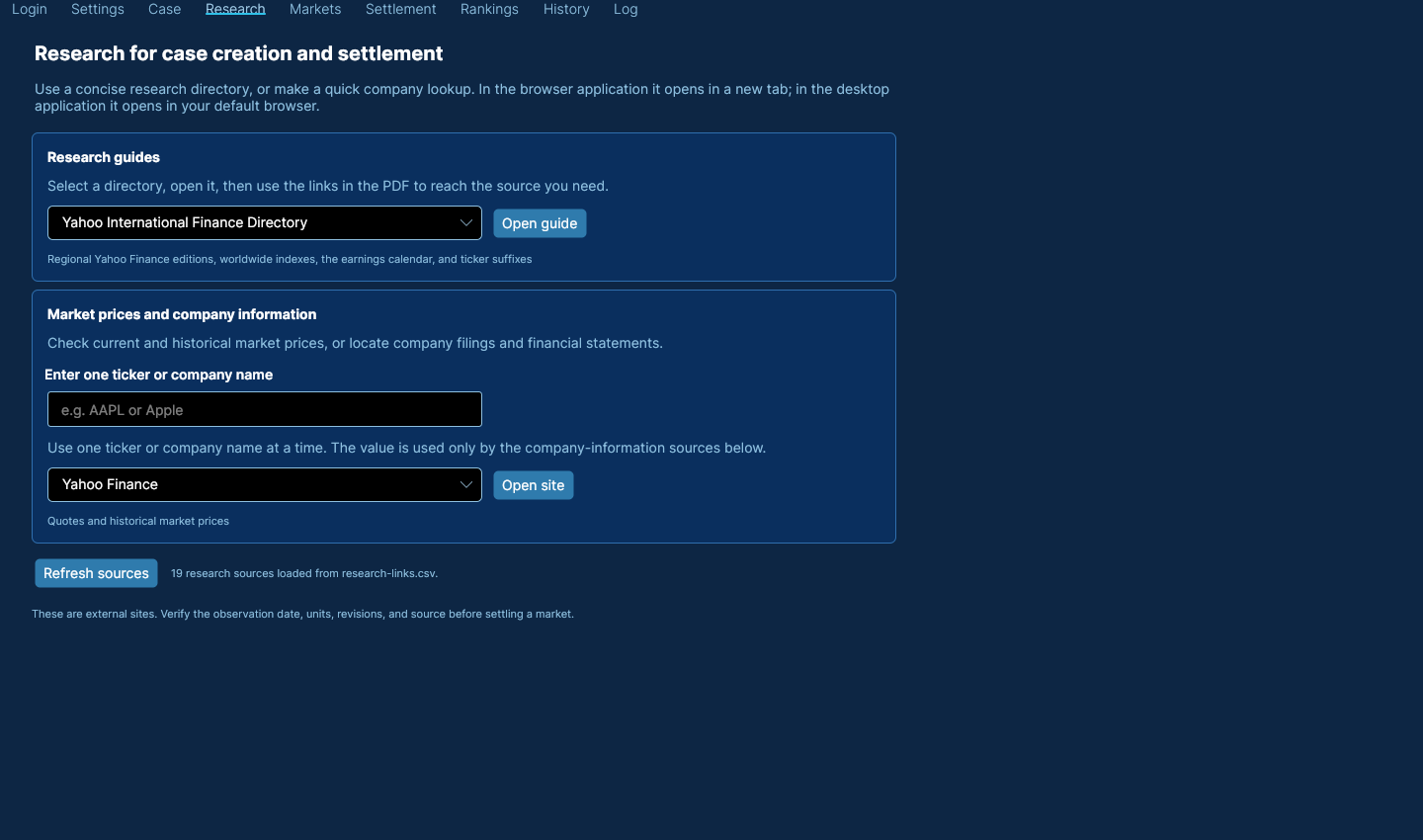
The Research tab groups company and market information, economic data, and linked PDF guides. Enter one ticker or company name for company-specific sources; other sources do not require a ticker. Select a source and Open site, or open a PDF guide. In the browser version a source opens in another tab; the desktop version uses the default browser. Check each source's date and definitions before using it for settlement.
3. Set traders
In the third Case step, Open — anyone may join is the default. Choose My class list if only named traders should enter. You can add traders individually or import a CSV. The CSV begins with a header and then has one trader per line:
Trading Name,PasswordTrader1,password1
Passwords are optional. Keep a secure copy if you assign them; traders who cannot sign in may need you to check or replace their password. Give traders the Participant application address, your FTS moderator email, their exact trading name, and any assigned password.
4. Run the market
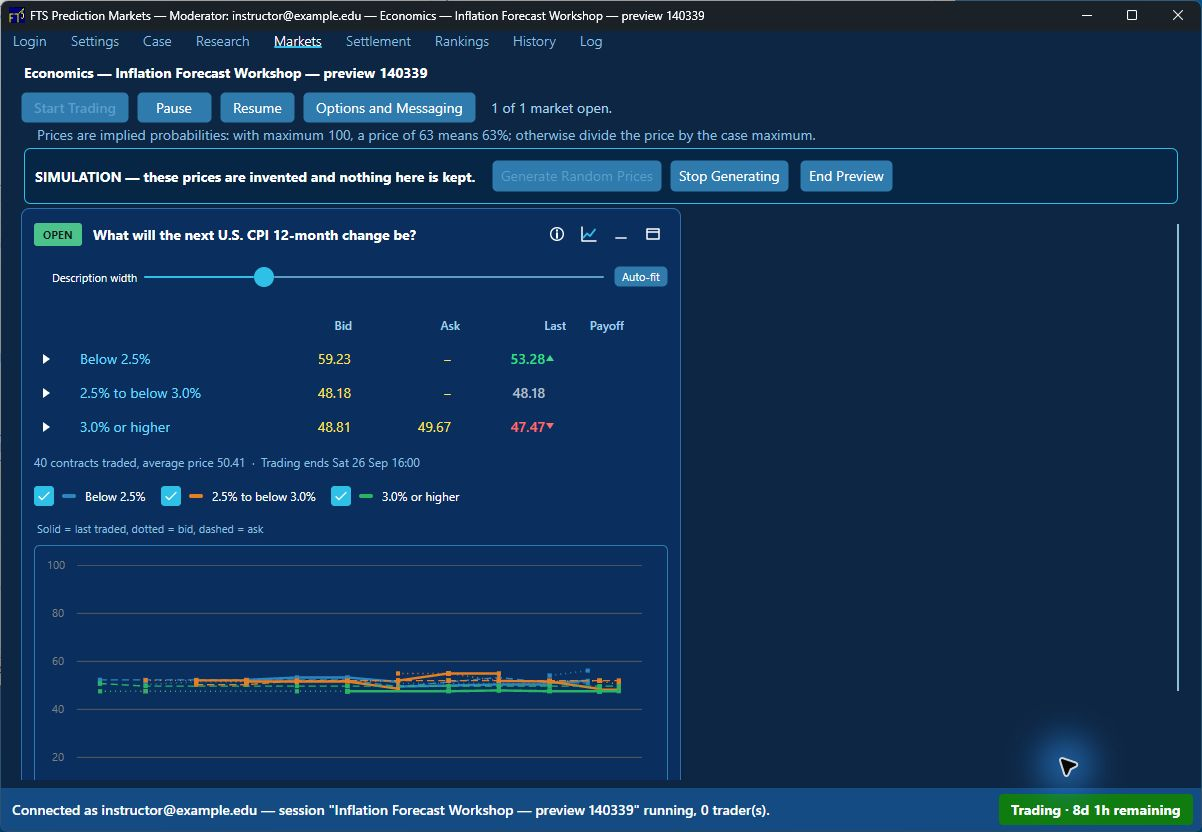
- After initialization, open Markets and select Start Trading.
- Watch the markets and order books. The status clock shows time remaining, including when trading is paused.
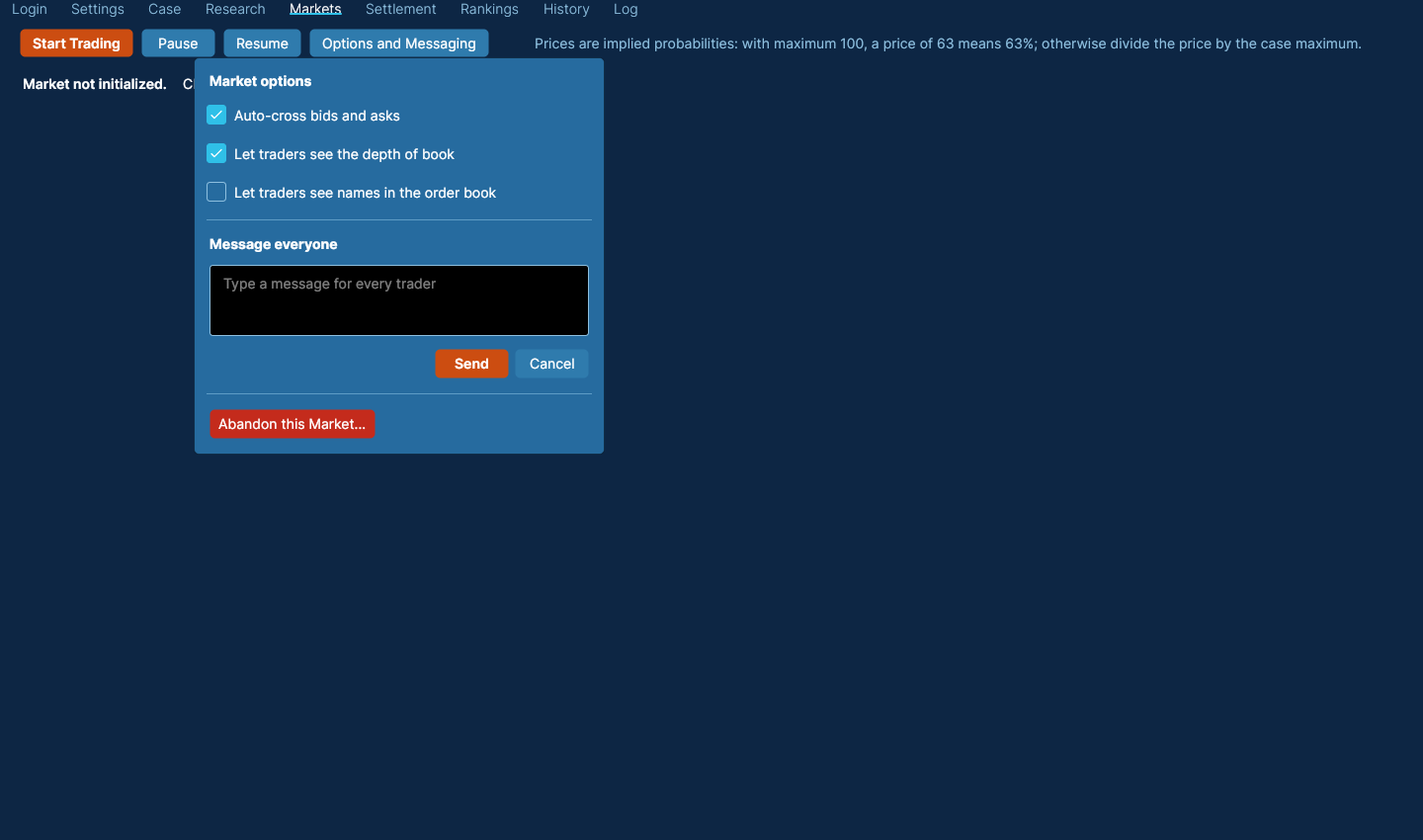
- Use Options and Messaging to send a message to everyone without leaving Markets.
- Use Pause and Resume when trading must stop temporarily and continue.
- Use End Trading when a market should stop before its scheduled time.
Abandon this Market is a separate, confirmed action for discarding a run; it removes that run's database records. Do not use it as a substitute for ending or settling a normal class exercise. If your connection drops, sign in again with the same FTS credentials.
5. Settle outcomes and close the case
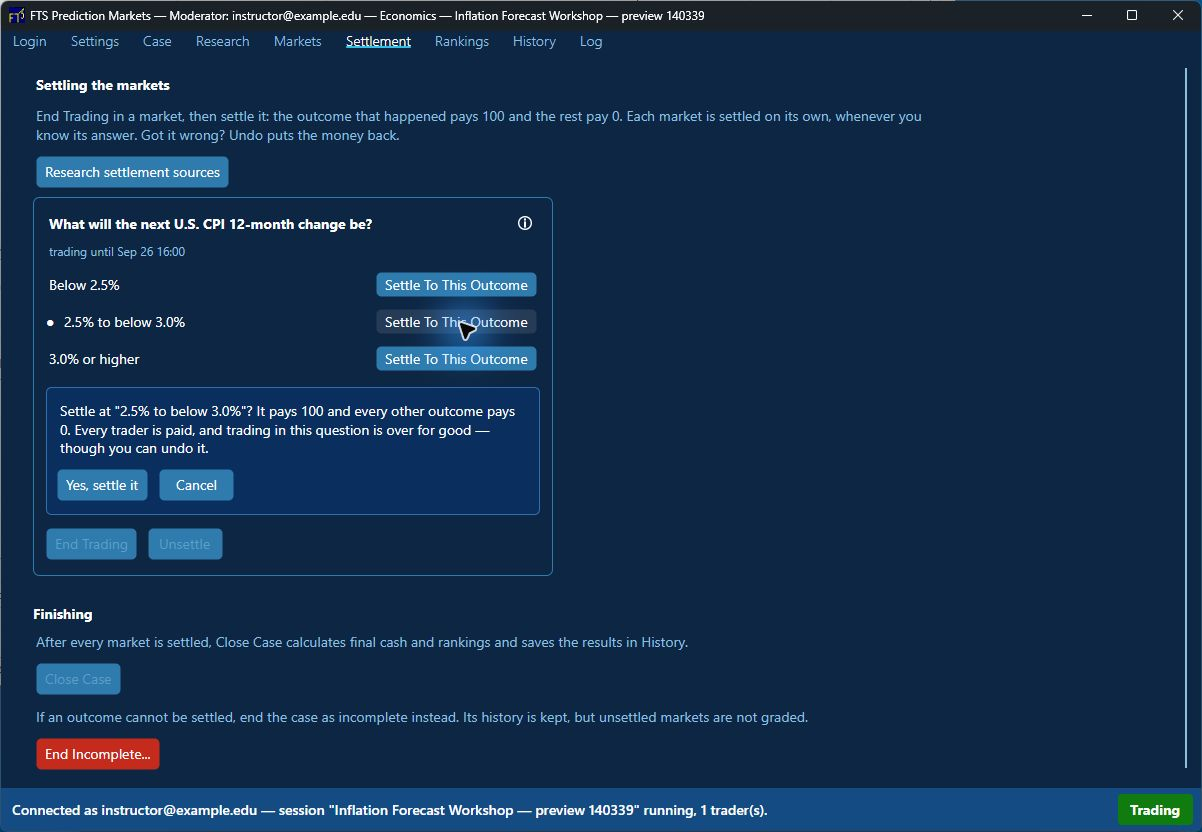
After an outcome is known, open Settlement. Use the small information icon to review the settlement rule and open its authoritative source, then choose the winning outcome and confirm Yes, settle it. A winning contract pays the case's maximum price; a losing contract pays zero. Review the selection before confirming because settlement changes participant cash and rankings.
If the wrong outcome was settled, use Unsettle, correct the selection and settle again. When every required outcome is settled and the exercise is complete, select Close Case. Final cash determines the rankings. A participant who did not trade retains initial cash but ranks below participants who traded.
6. Review results and records
- Rankings shows performance by market and the running total.
- History lists one row for each completed session. Select a session and choose Create AI-ready summary for the recommended compact version, or Create full anonymized AI-ready history when every transaction row is needed.
- Both versions replace registered trading identities with consistent labels such as Trader 1 and Trader 2. A review window shows the exact text and privacy warning before you choose Copy to clipboard or Save as text file. The saved text file can be uploaded to an analysis tool such as ChatGPT.
- The compact summary keeps the case, outcomes, settlement, rankings, aggregate performance and notes while replacing repetitive transaction rows with concise activity and price-path summaries. The full history keeps the complete anonymized class trading/results record and notes, so it may exceed some AI services' input limits.
- Download selected files saves the underlying class trading/results CSV and class notes Markdown record when the session row is selected. Expand Files in selected run only when you want to choose particular class or participant records.
- FTSPM does not upload anything to an AI service. Because notes are free text, review them for personal information participants may have typed, use only services permitted by your institution and follow its privacy and data-use policies.
- Log is useful when FTS support asks what happened.
Moderator screenshots
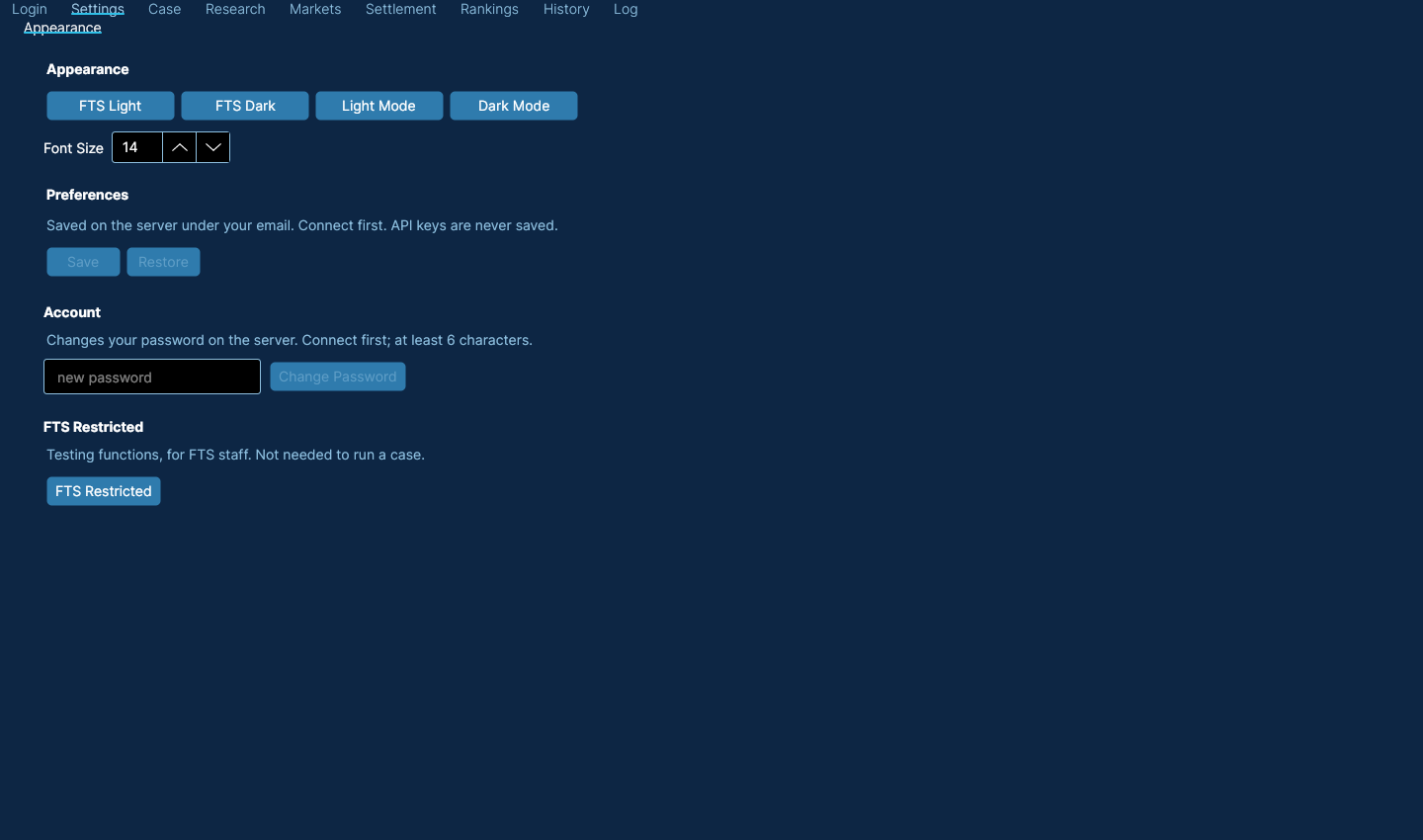
These illustrate the current interface. The case and active-market views come from an isolated desktop demonstration with a fictitious instructor and simulated prices; the same work areas are available in the browser. No classroom records are pictured.
Troubleshooting and support
The FTS service cannot be reached
Refresh the page and try once more. You do not need to start or configure a server. If the message remains, contact FTS.
Email is not registered
Use the email registered for your FTS moderator account. Contact FTS if it is correct or if access needs to be added.
Password is not accepted
Retype your FTS moderator password. Contact FTS if it is still refused.
A participant cannot join
Check the moderator email, the exact spelling of the participant's trading name, the participant password and whether the case is running. Participant questions that remain unresolved can be sent to ftsstudent@gmail.com.
Moderator support and demonstrations: ftsweb@gmail.com