Before you begin
Your moderator should give you:
- The Participant application address if you are using a browser
- The moderator's FTS email address
- Your exact trading name
- Your password, if the moderator assigned one
Browser version: The web application connects securely through the site.
Desktop version: The application uses ftspredictionmarkets.com and retrieves the current port automatically from the FTS website.
Neither version requires you to enter a server address, port or IP address.
1. Join the market
- Open the Participant application.
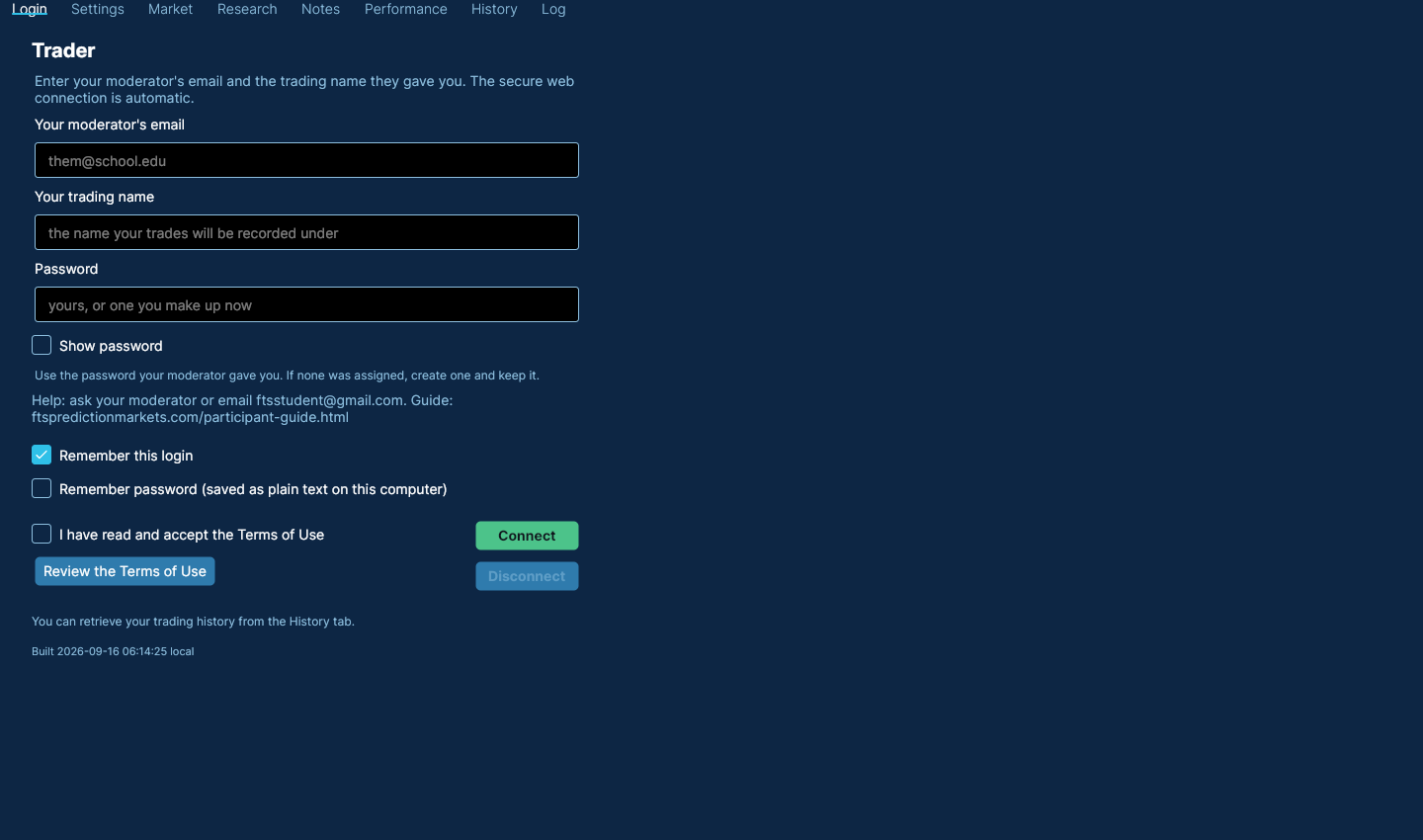
- Enter your moderator's email.
- Enter your exact trading name and password.
- Review and accept the Terms of Use, then select Connect.
If no password was assigned, make one up and keep it. You will need the same password to return to your records later.
2. Trade
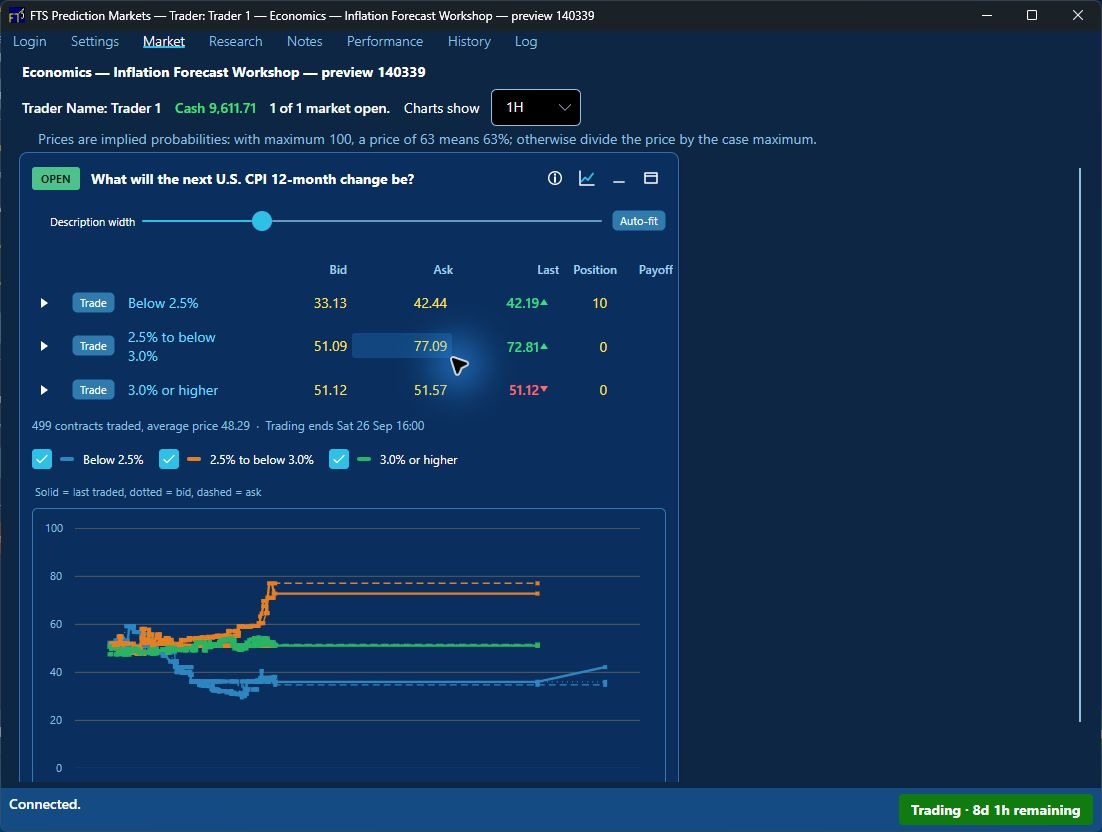
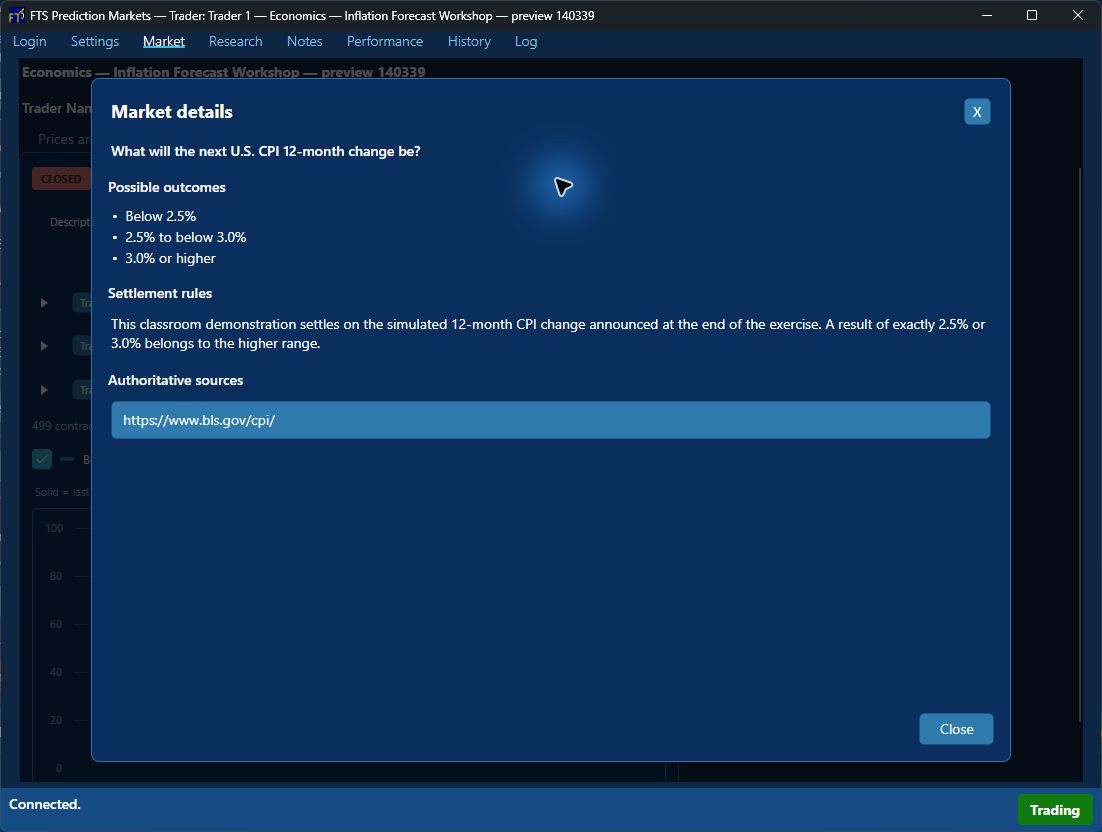
Open Market. Each card represents one question; each possible outcome is a contract. Prices are implied probabilities. With the usual maximum price of 100, a price of 63 means 63%. If your moderator uses another maximum, divide the price by that maximum. The small information icon shows the complete question, possible outcomes, settlement rules and optional authoritative source.
- Choose the outcome contract you want to trade.
- Enter a price and quantity, or use the current bid or ask.
- Check those values, then choose the buy or sell action.
The Bid, Ask and Last columns show prices only. Hover over a price to see its quantity, or open the outcome's order book to inspect all available quantities. Double-click a Bid or Ask to open the trade controls with that price and quantity filled in; the trade is not placed until you choose the appropriate buy or sell action.
Select Auto-fit to fit the description column to the longest outcomes currently displayed. You can then use the Description width slider for any personal adjustment. The card grows and the page reflows as the description column widens.
Your order may trade immediately or remain in the order book. Cash and position update when a trade fills. You can cancel an outstanding order while trading is open. Borrowing is not allowed, so a purchase cannot take your cash below zero. Your moderator may pause or end trading at any time.
3. Research before you trade
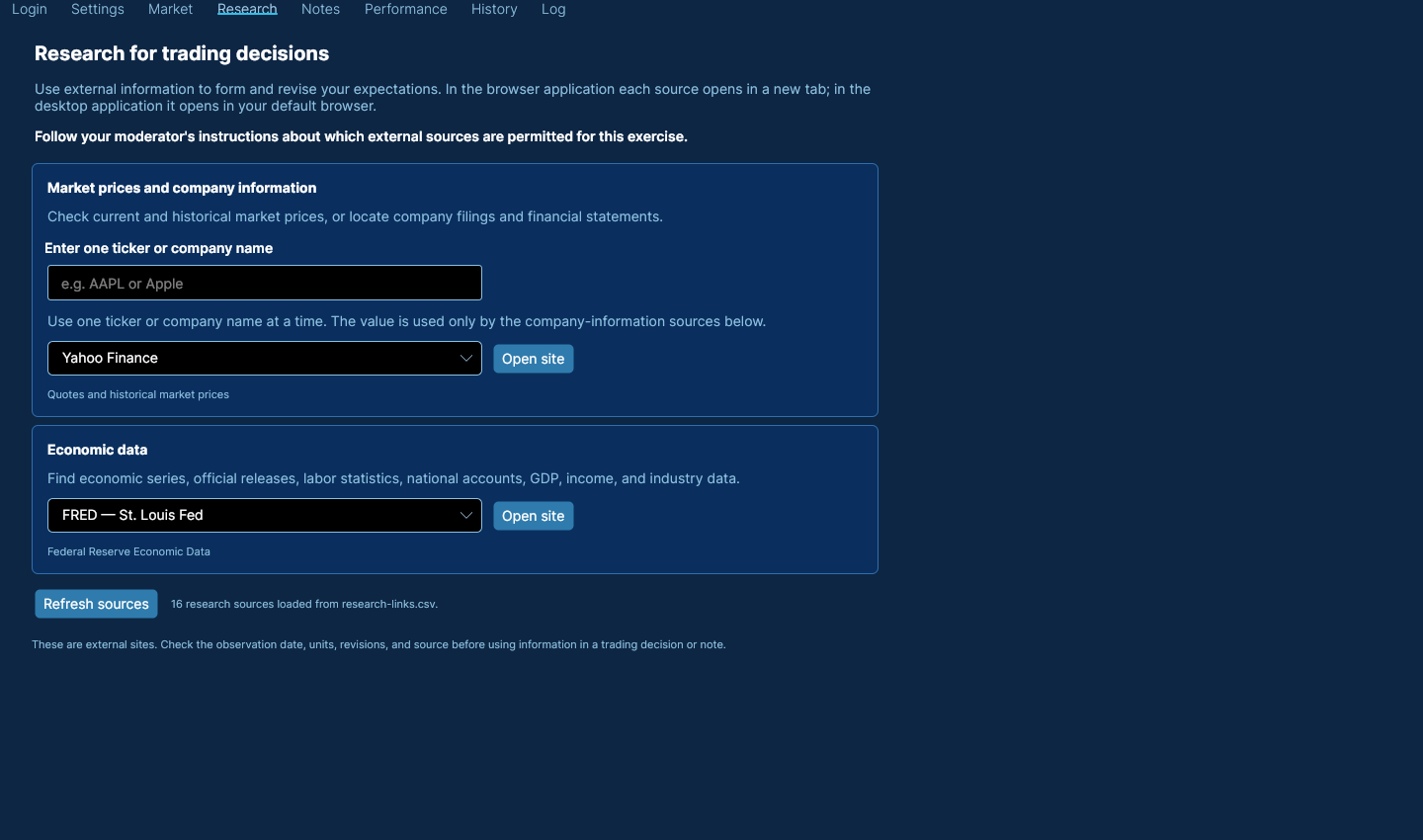
The Research tab is part of the application because trading should begin with evidence, not with an order ticket. It sits beside Market and Notes so you can move from source material, to a recorded judgment, to a trade.
The tab groups company and market data, economic sources, and linked guides. Enter one ticker or company name for a company-specific source, choose a site, and select Open site. Other sources need no ticker. Browser sources open in another tab; the desktop application opens your default browser.
Many FTSPM questions ask you to assess several ranges or related outcomes, not merely choose yes or no. Research the evidence, form an estimate and decide how much probability belongs to each possible result. If your instructor permits AI-assisted research, treat it as another research tool: check its sources, dates, definitions and calculations before relying on its analysis. You remain responsible for the judgment expressed by your trades.
4. Record your reasoning
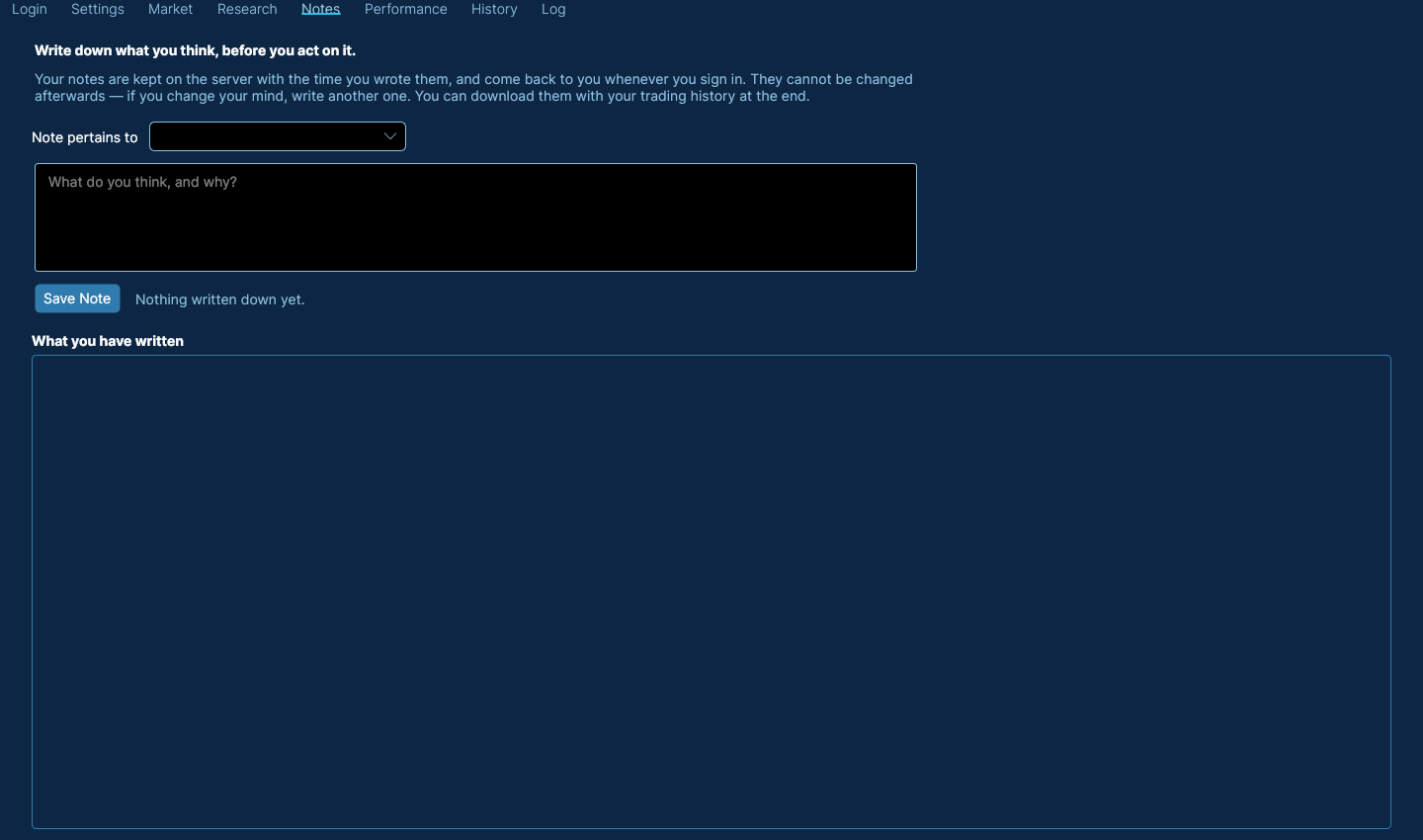
Use Notes to record what you think before acting on it. Choose the market the note concerns, write the reason for your judgment and select Save Note.
Notes are timestamped and cannot be edited afterward. If your view changes, save another note. This creates a useful record of how your reasoning developed. The moderator can download class notes, so avoid entering personal information that is not needed for the exercise.
5. Review performance and history
- Performance shows your result and rank after questions are settled.
- History lets you retrieve your trading records and notes.
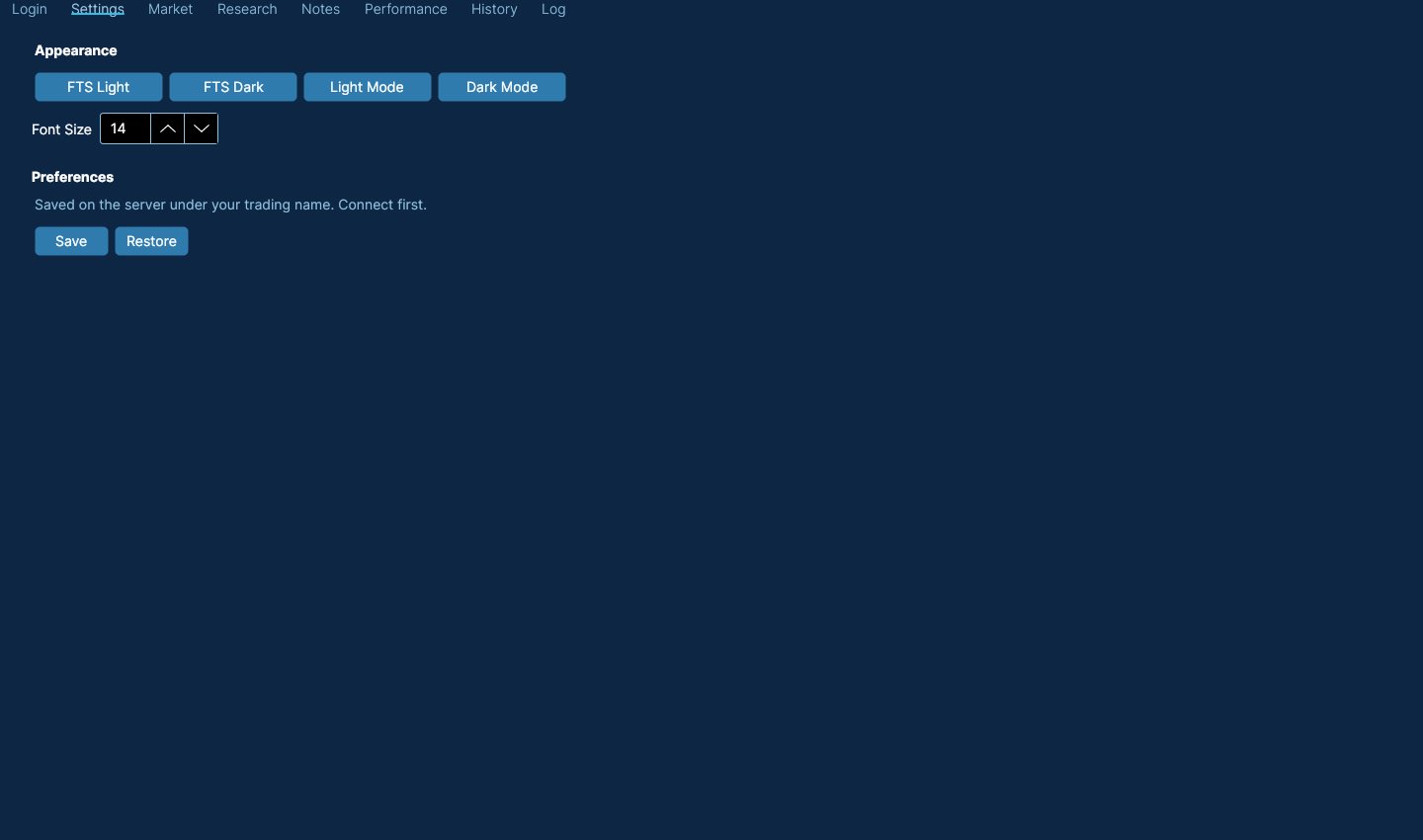
- Settings controls appearance and saved login preferences.
- Log contains connection details useful when support asks what happened.
Participant screenshots
These illustrate the current interface. The populated market and result views come from an isolated desktop demonstration with a fictitious trader and simulated prices; the same work areas are available in the browser. No classroom records are pictured.
Troubleshooting and support
The FTS service cannot be reached
Refresh the page and try once more. You do not need to start or configure a server. If the message remains, tell your moderator or contact participant support.
Your trading name is not on the class list
Check the spelling and moderator email, then ask your moderator to check the class list.
Your password is refused
Retype it and ask your moderator to check or replace it. Use the same password when returning for your history.
No market is running
Check the start time and moderator email with your moderator.
If the problem remains, email ftsstudent@gmail.com.